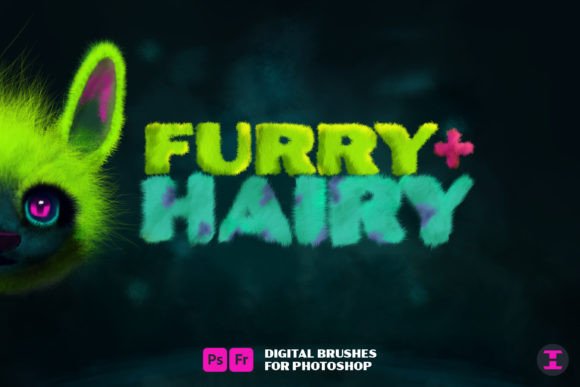
Master Realistic Fur with Furry Hairy Photoshop Brushes
Digital artists and photo editors often face the same frustrating hurdle: creating convincing hair and fur textures. Whether you are designing a fantasy creature, retouching a portrait, or adding realistic details to an illustration, painting individual strands by hand is tedious and rarely looks natural. This is where specialized tools make a significant difference. Furry Hairy Photoshop Brushes offer a streamlined solution, giving you total control over every last strand of hair in your next furry design project. By leveraging these custom brushes, you can say goodbye to bad hair days in your digital workspace and focus on creativity rather than repetitive manual labor.
Why Standard Brushes Fall Short for Fur Textures
Default brush sets in most graphic software are designed for general painting, blocking in colors, or soft blending. They lack the specific dynamics required to mimic the chaotic yet structured nature of animal fur or human hair. When you try to create a cheetah fur pattern using a standard round brush, the result often appears flat, uniform, and artificial. You might spend hours trying to vary opacity and flow manually, only to end up with a texture that lacks depth and movement.
The primary value of Furry Hairy Photoshop Brushes lies in their pre-configured settings. These brushes are engineered with specific scattering, shape dynamics, and texture overlays that replicate the organic randomness of real hair. This means you can achieve complex textures with a single stroke, saving valuable time while enhancing the realism of your work. For professionals working under tight deadlines, this efficiency is not just a luxury; it is a necessity.
Practical Applications for Creators and Professionals
The versatility of these brushes extends far beyond simple animal illustrations. Here are several realistic use cases where these tools prove indispensable:
- Character Design and Concept Art: Bring new creatures to life by quickly laying down base fur textures. Whether you are designing a fluffy mascot for a brand or a menacing beast for a game, these brushes allow you to experiment with different densities and lengths without starting from scratch.
- Photo Retouching and Enhancement: In high-end beauty and fashion photography, minor imperfections are common. If a model has a patchy beard or thinning eyebrows, you can paint in a single strand of hair into that retouching job to make it just right. The brushes blend seamlessly with existing hair, making the edit invisible to the naked eye.
- Digital Painting and Illustration: Artists can use these tools to add fine details to clothing, such as faux fur collars or woolen textures, adding a tactile quality to digital paintings that engages the viewer.
- Marketing and Advertising Materials: Small business owners and marketers creating product mockups for pet supplies or grooming products can use these brushes to create appealing, high-quality visuals that stand out on social media feeds.
Getting Started: Tips for Beginners
If you are new to using custom brush sets, the interface might seem overwhelming at first. However, mastering Furry Hairy Photoshop Brushes is straightforward if you approach it methodically. Start by selecting a brush that matches the general length and thickness of the hair you wish to create. Do not expect one brush to do everything; most packs include variations for short stubble, long flowing hair, and coarse animal fur.
One critical technique is to vary your pressure and stroke direction. Real hair does not grow in a uniform grid. Use a graphics tablet to take advantage of pressure sensitivity, allowing lighter touches for finer strands and heavier pressure for thicker clumps. Additionally, rotate your canvas frequently. Painting in the direction of hair growth ensures that the final image looks cohesive and natural. If you are creating a cheetah fur pattern, remember that the spots are part of the skin, but the fur sits on top. Layer your brushes accordingly to maintain depth.
Key Considerations Before You Begin
While these tools are powerful, there are important factors to consider to ensure you get the best results. First, check the compatibility of the brush files with your version of Photoshop. Most modern .abr files work across recent versions, but older software may have limitations regarding brush dynamics and spacing settings.
Secondly, consider the resolution of your project. High-detail fur work requires a high-resolution canvas. If you are working on a small web banner, overly detailed brushes may appear muddy or pixelated. Conversely, for large-format prints, ensure your brush settings are adjusted to maintain sharpness at larger sizes. You may need to tweak the spacing and scatter settings within the brush panel to suit your specific document dimensions.
Finally, think about color variation. Real fur is rarely a single solid color. It contains highlights, shadows, and undertones. Use these brushes on separate layers with different blending modes, such as Overlay or Soft Light, to build up complexity. This non-destructive workflow allows you to adjust the intensity and color of the fur without altering the underlying image permanently.
Enhancing Your Creative Workflow
Incorporating Furry Hairy Photoshop Brushes into your toolkit is about more than just saving time; it is about expanding your creative possibilities. Infinite possibilities await you when you remove the technical barrier of painting realistic textures. You can focus on composition, lighting, and storytelling, knowing that the textural details are handled by reliable, professional-grade tools.
For educators and freelancers, these brushes can also serve as a teaching aid or a selling point. Demonstrating how to achieve realistic fur quickly can be a valuable lesson for students, while offering high-quality retouching services can help freelancers secure higher-paying clients. The ability to fill in a patchy beard from your latest photoshoot or create intricate fantasy creatures adds a layer of professionalism to your portfolio that clients notice and appreciate.
Ultimately, the goal is to make the digital medium feel as tangible and expressive as traditional art. With the right tools, you can achieve a level of detail that was once reserved for master painters with endless patience. Say goodbye to bad hair days in your digital projects and embrace the precision and flexibility that specialized brushes provide. Whether you are a hobbyist exploring digital art for the first time or a seasoned professional refining your workflow, these brushes offer the control and quality needed to elevate your work to the next level.