Pen Procreate Brushes: Elevating Digital Illustration with Realistic Inking
Digital art has come a long way from the stiff, uniform lines of early graphic tablets. Today, artists crave the tactile feedback and organic imperfection of traditional media. This is where Pen Procreate Brushes bridge the gap between the physical and digital worlds. These specialized tools are designed to mimic the experience of using a physical pen, allowing artists to create realistic and detailed illustrations with ease. Whether you are a seasoned illustrator or a hobbyist just starting your journey, understanding how these brushes function can transform your workflow from mechanical to masterful.
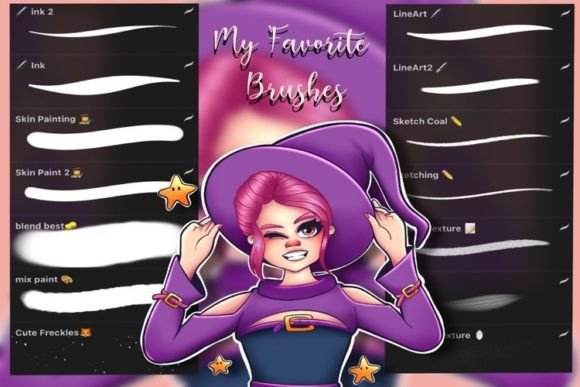
The core appeal of Procreate Pen Brushes lies in their ability to replicate the nuanced behavior of real-world writing instruments. Unlike standard digital brushes that often feel flat or overly perfect, pen brushes respond dynamically to your hand movements. They come in a variety of styles and sizes, ranging from fine-pointed technical pens for intricate details to broad calligraphy brushes capable of thick, flowing strokes. This versatility makes them indispensable for a wide range of artistic projects, including sketching, lettering, and inking.
Real-World Applications for Different Creatives
While the technology behind these brushes is impressive, their true value is revealed in practical application. Different creative professionals leverage Pen Procreate Brushes in unique ways to solve specific workflow challenges.
Comic Artists and Sequential Storytellers
For comic artists, line weight is everything. It defines depth, focus, and movement within a panel. Using standard brushes often requires manual adjustment of size settings, which breaks the flow of drawing. With customizable pen brushes, artists can rely on pressure sensitivity and tilt response. A light touch creates a whisper-thin line for distant objects or delicate features, while pressing harder produces bold, confident outlines for foreground elements. This dynamic range allows for faster inking sessions and more expressive character designs, making Procreate Pen Brushes a popular choice for illustrators who need efficiency without sacrificing quality.
Lettering Artists and Calligraphers
Hand-lettering demands precision and fluidity. Calligraphy brushes within the pen category are engineered to simulate the swell and taper of nib-based pens. When creating logos, wedding invitations, or social media graphics, the ability to adjust the angle and pressure ensures that each curve feels natural. These brushes are ideal for creating precise lines and strokes that maintain consistency across complex typographic compositions. Designers find that using these tools reduces the need for post-production vectorizing, as the initial digital stroke already possesses the organic quality clients often seek.
Architectural Sketchers and Urban Reporters
Urban sketchers often work quickly to capture the essence of a scene before the light changes or the subject moves. Fine-pointed pen brushes allow for rapid architectural detailing. The stability settings in many high-quality pen brush sets help smooth out hand jitters, resulting in clean straight lines for buildings and structures, while still retaining the hand-drawn charm. This balance between control and freedom is crucial for professionals who need to convey structural accuracy alongside artistic flair.
Customization: Tailoring the Tool to Your Hand
One of the most significant advantages of using Pen Procreate Brushes is their high degree of customizability. No two artists hold their stylus the same way, and no two drawing styles require identical friction or opacity levels. Procreate allows users to adjust pressure sensitivity, tilt response, streamline, and jitter.
For instance, an artist who prefers a heavy hand might lower the pressure curve so that even a light touch registers as a medium-weight stroke. Conversely, someone who draws lightly might increase the sensitivity to ensure their subtle gestures are captured. This personalization creates a tailored experience that suits individual drawing styles, reducing fatigue and increasing comfort during long drawing sessions. It transforms the iPad from a generic tablet into a personalized studio instrument.
Considerations Before You Start
While these brushes offer immense potential, there are practical considerations to keep in mind to ensure a smooth experience. First, it is essential to recognize that these brushes only work on Procreate. They are not compatible with other digital art software like Photoshop or Clip Studio Paint on the iPad. This exclusivity means that if you switch platforms frequently, you may need to invest time in finding equivalent tools elsewhere.
Additionally, the performance of pen brushes is heavily dependent on your hardware. While newer Apple Pencil generations offer superior tilt and pressure recognition, older models may not provide the same level of nuance. Artists should ensure their iPad and stylus are updated to the latest firmware to fully utilize the advanced features of modern brush sets.
Another common consideration is the learning curve associated with digital inking. Even with the best Procreate Pen Brushes, transitioning from paper to glass can feel slippery. Many artists recommend using a matte screen protector to add friction, mimicking the tooth of paper. This simple accessory can significantly enhance the realism of the pen brush experience, providing the resistance needed for controlled, deliberate strokes.
Installation and Getting Started
Getting started with your new tools is straightforward, designed to minimize technical hurdles so you can focus on creating. After purchase, you will be provided with a link to download the file. The process is seamless for most users:
- Download the brush set file directly to your iPad.
- Open the downloaded file. If prompted, choose to open it with Procreate.
- The downloaded brushset will automatically install and become available for use in your brush library.
If you have any problems with the installation, such as the file not recognizing the app, ensure your Procreate version is up to date. Most developers provide support, so if issues persist, let me know. Customer support is usually quick to resolve compatibility glitches or corrupted downloads.
Once installed, take time to explore the different brushes in the set. Test them on a blank canvas to understand how they react to varying speeds and pressures. Experiment with combining different pen styles—using a fine liner for details and a broader marker for shading—to discover new textures and effects.
Please let me know if you have any questions about specific brush settings or techniques. The community of digital artists is vast and supportive, and sharing tips on how to maximize the potential of Pen Procreate Brushes can lead to breakthroughs in your own work. Whether you are drafting a quick concept sketch or finishing a polished illustration, these tools provide the reliability and expressiveness needed to bring your vision to life.
Ultimately, the goal of using these brushes is not just to replicate traditional media, but to expand what is possible. By removing the limitations of physical ink—such as running out of pigment or making irreversible mistakes—artists can experiment more freely. The undo button is a powerful companion to the pen brush, encouraging risk-taking and iteration. Embrace the flexibility, customize your settings, and let the digital pen become an extension of your creative intent.